Install 4Search as an app
On this page
4Search is a website you can put on your phone's home screen. It then opens in its own window, without the browser's address bar, like an app. There is no app store and nothing to download.
#Where the install buttons are
Two buttons start the process, in two places:
- In the Menu, at the bottom: Install app (Android) and Add to Home Screen (iPhone).
- In the page footer, under Get the app: Install app Android and Add to Home Screen iPhone.
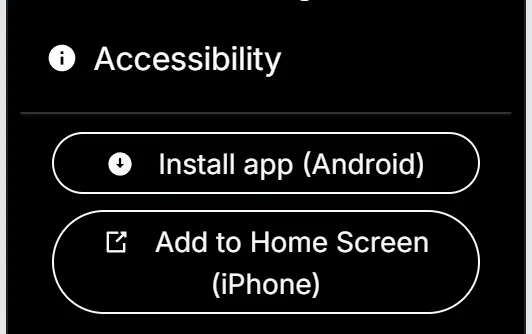
The two install buttons at the bottom of the Menu.
- 1Install app (Android)
- 2Add to Home Screen (iPhone)
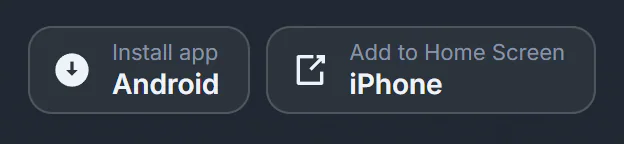
The same two buttons in the footer.
- 1Android
- 2iPhone
#Install on Android
- Open 4Search in Chrome on your Android phone.
- Open the Menu and select Install app (Android).
- If your browser offers installation, it shows its own prompt. Confirm it.
- If no prompt appears, 4Search shows a short card with the steps. Follow them.
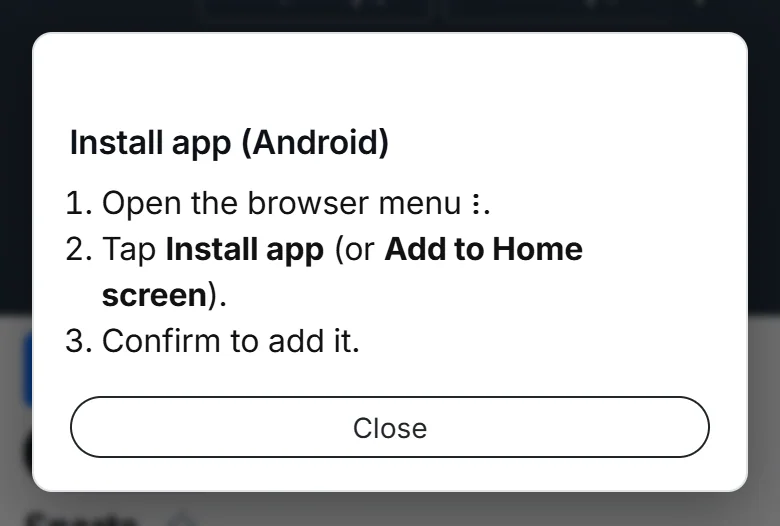
The Android card: open the browser menu, tap Install app, then confirm.
- 1The three steps
- 2Close the card
The card says: open the browser menu ⋮, tap Install app (or Add to Home screen), and confirm to add it.
#Add to the home screen on iPhone
-
Open 4Search in your iPhone's browser.
-
Open the Menu and select Add to Home Screen (iPhone). A card shows the steps.
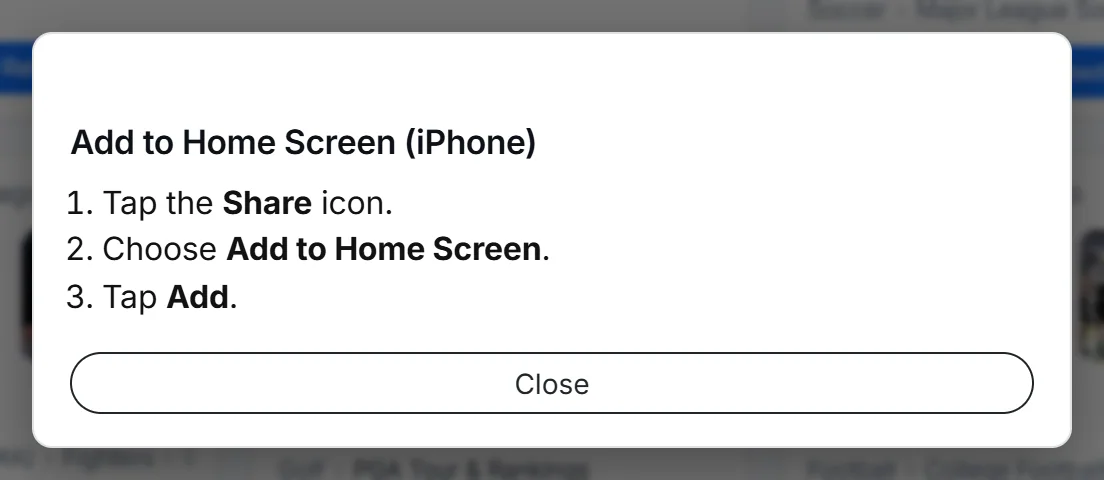
The iPhone card gives three steps: Tap Share, choose Add to Home Screen, tap Add.
- 1The three steps
- 2Close the card
-
Tap the Share icon in your browser.
-
Choose Add to Home Screen.
-
Tap Add.
On an iPhone, the iPhone steps appear whichever of the two buttons you select.
#On a computer
On a computer, Install app (Android) asks your browser to install the app when your browser offers it. If it does not, the button shows general tips: use your browser's menu to find Install or Add to Home screen, and if you do not see it, reload the site and try again.
#What you get
- The site itself. The icon opens the same site you see in a browser. It always shows the current site and needs an internet connection, because 4Search does not store pages on your device for offline use.
- Its own name and icon. Every site in the 4 Network is its own app. Installing from 4Conservative gives you 4Conservative, not 4Search. On an iPhone the home screen label is the site's name, cut to 12 characters if it is longer.
- The home page. The icon opens the site's home page.
- Removal like any app. Remove it the way you remove any app or home-screen shortcut on your device.
#Common questions
Is this a real app from an app store?
No. It is the 4Search website added to your home screen. It opens in its own window and updates whenever the site does.
I do not see an Install button. Why?
The buttons are in the Menu and in the footer. If you do not see them, the site you are on may not show them. Use your browser's own menu and look for Install or Add to Home screen.
Does installing give 4Search more access to my phone?
The icon only opens the website. 4Search asks for things such as your location only when you use a feature that needs it, such as Use my location in Weather, and your browser asks your permission first.
Can I install more than one 4Search site?
Yes. Each site in the 4 Network installs as its own icon with its own name.